Inspire Connect Engage Create
Posts tagged Google Docs
Marmite: Love it or Hate it? – Using Google Forms and Twitter
Mar 15th
Over the next two weeks in our year 5 class we will be exploring data investigation and the tools with which we can use to undertake them. The first three days of this week we will be looking at some technology that can enhance data handling and make our life easier. In today’s session we learned about Google Forms and I demonstrated how they work with the help of my Twitter network.
We wanted to achieve three things from our maths session today
- Make a short survey using a Google Form.
- Complete other people’s surveys and get a feel for the process.
- Review the data added to our own and explore some of the ways it is represented.
After placing the lesson in the context you see in the first paragraph, I began the session by explaining that I was going to use my Twitter network to help demonstrate how we can use Google Forms to collect data.
I spent some time with the class going through the process of creating a Form from the Google Docs home screen and then adding my questions and running through the different types of questions you can use. We talked a lot about how this type of data collection is only good for some occasions and a pencil and paper method can still be the best way. It is a matter of choosing the most appropriate.
The class would be making a simple favourites or preference type survey and so our shared one was similar. You can see it embedded in the post below.
Once complete, I sent out the link to this to my Twitter network (Look at the bottom of the Form edit page for the link – I used bit.ly to shorten it for Twitter, more on that later!) I did this because I wanted the children to see data being added, I wanted to demonstrate the moment of data submission from the Google Form. This also helps the children see how a spreadsheet is linked to the form. (15 minutes)
We switched to the spreadsheet and the children thought it was rather magical as the responses started to drop into the cells as we watched. I reminded them that as soon as someone clicks SUBMIT we were seeing the result.
The children then worked in groups of three with a single laptop (2 groups per table) – one of the children signed into their Google Docs (part of Google Apps for Education) account and created their own “Favourites” Google Form. To keep the children focused I asked them to only give 5 choices for their questions otherwise they tend to get longwinded and only create one or two questions. (15 minutes)
One of the useful things about writing up lesson experiences on my blog is that it is wonderful to go back and look at what I learned and make adjustments to lessons. With some of these things in mind, once the groups had made their Forms, rather than share via email etc (this just adds a complication) we clicked on the Live Form link at the foot of the page.
So everyone had on their laptop screens their form and I asked them to simply change places with those on their table and complete each others’ surveys. They then moved around the classroom adding their responses to other forms from other groups. Although it is nice to share via email, in my experience of working with Google Forms and lots of children it is much easier to move the children rather than share the Form. The children certainly got more responses this way and contributed more, there was less in the way.
After each child had submitted their responses they clicked on the Go Back to the form link which reset the form for the next child – this worked out really well. (15 minutes)
Up to this point the children were able to appreciate how Google Forms is a great way to gather information and how it organises it for us in the spreadsheet.
Back at their own Google Form the children spent some time exploring the results Summary page to look at how their data can be represented. (5 minutes)
As a class we returned to our Edu Favourites survey of educators in my Twitter network. By the end of my second session we had over 125 responses and it was a great pool of data to explore. Real data from real people that we literally witnessed being entered. I was able to ask children lots of questions from how it was represented. It proved to be a great plenary. Here are the results from the survey, there are currently 170 responses – thankyou if you were one of them. (5 minutes)
As a final exploration of this whole process you could explore the link data. I used bit.ly to shorten the long Google Form URL. bit.ly provides traffic data, with a free account, and you can show the class where the people clicking on the form are from. Currently there have been 269 clicks on the Edu Favourites form link and here is where everyone is from.
You could even do some work on how many didn’t fill in the form and compare it to those who did.
Thankyou for taking the time to help with our maths lesson today, I am always so grateful for your contributions – and some of you have even gone away wondering what Marmite is – life will never be the same again. By the way I hate it too!
The Curriculum Catalyst – Stage 2 – Contribute Your Ideas
Mar 12th
Posted by tbarrett in Curriculum
The Curriculum Catalyst is about the online education community coming together to produce practical resources that we can all use to support curriculum development.
At the end of last weekend the Catalyst had over 280 topic ideas for the curriculum and over 70 people had voted more that 3000 times for a top topic. It turned out to be SEALIFE and since then I have created an open Google Document to collate our ideas for the topic. (Stage 2)
The document already has over 50 crowd-sourced sealife ideas (thanks for your help so far) for teaching and learning including:
- Subject specific lesson activities
- Books to support the Sealife topic
- Web based resources
- Details of the Ocean layer in Google Earth
- Nintendo Wii games that can be used
- Possibilities for places to visit in the UK
- DVD titles
I hope that it proves useful in sparking some ideas for you and your staff. Please consider adding a short idea to the document to continue developing it. Don’t forget to just explore the 280+ topic ideas themselves (and vote), maybe there is something there you haven’t thought of.
After a week, so this Sunday, I will repeat the process for the next highest voted topic and create a new ideas document to work on. Currently “Imaginary Creatures” is in the lead. All of the weekly docs will be linked from my blog’s Curriculum Catalyst page.
Using Voicethread for Writing Ideas and for Peer Marking
Feb 1st
Posted by tbarrett in Google Docs
In the past week or so our literacy work has focused on a short sequence from the comic Spiderman #1. Our Superheroes topic is going well and in this post I explain how we have used Voicethread as a creation tool, a writing scaffold and as a way to do peer marking.
We began with the sequence in the comic where Peter is attending a science fair at a local school and is bitten by spider that has been zapped by one of the radiation machines on show. I wanted the short 5 panel sequence to be the focus of an extended narrative. I liked the tight focus on a few moments and the action and comic imagery would really help us to write some interesting narrative.
To begin with we made some notes about the short sequence as a whole class, mainly key words, things that just jumped out from the images and from the facial expressions of Peter.
The next step was to import the five panels from the comic you can see in the above image into Voicethread. I just used a screen capture tool and created some separate image files for each. The Voicethread was to be a collection of first ideas. At this early stage of the writing process I think Voicethread plays it’s hand superbly.
The children have the opportunity to say their ideas aloud. To articulate, listen back, correct and re-articulate very easily. All of the children in the year group worked on writing and recording ideas for the Bitten! sequence and as you know they are privy to all of the comments from their peers in real time. We used the vocabulary above as a stimulus throughout this early task.
After sharing literally hundreds of narrative ideas for the sequence, the children were put with a writing partner. Often we focus on writing in solitude but I think the support and insight children can get from working together is hugely rewarding. They get to see how someone else might approach the same piece of writing.
I modelled the up-levelling or improvement of some simple starter sentences for each of the panels. We worked together as a class to extend and improve on them using the language already collected. The children used Google Docs for their work and I encouraged children to also have open the Voicethread of ideas that we had created. The 5 panels acted as 5 simple paragraph changes. In this step the children are using Voicethread as a source of ideas and as a writing scaffold. They listened and read back the comments others had left and I think found these really useful in kick-starting their work.
As we were working in Google Docs I dipped into their work as they were busy writing. I have written before about how this is less obtrusive than looking over their shoulder or taking their books off of them. I added a header to the Google Doc and then used CTRL+M to add a named and dated comment. I would back this up by a quick chat with the pair if needed to ensure they would act on my advice and feedback.
The children had of course shared their Document with me and their writing partner. In my Docs home screen I used the star label to show which Docs I had marked and which I hadn’t. You can read some more ideas for marking with Google Docs in this blog post.
As part of the writing process I explained we would be publishing some to the class blog. I wanted the feedback from the blog to be part of the improvement process for the children. I think that if you plan to publish examples of work in this way, and the kids know this before they begin, you are not just bolting it on afterwards. The children know that the blog readership will be their audience.
We were able to publish 80 percent of the work from the class, those that didn’t were just unfinished. The comments that we received were fantastic and greatly encouraging for the children involved. We would revisit these later in the process.
Although the children have a finished piece of work at this point we are only part of the way through the writing process I had planned and this is where we turned back to Voicethread again. (We kept a printed copy of this first draft.) I have often said that the use of PDFs in Voicethread is overlooked. Clearly the use of images and video is very engaging, but adding PDFs is really useful functionality.
I did two things before exporting the children’s work from Google Docs. Firstly I added their names next to the title of the work. I knew from who shared it with me who the owner was, but as a plain PDF it would be missing that. The second thing was to increase the size of the text so that it was clearly visible in Voicethread.
Voicethread allows you to zoom in to text or images, but when you need to use the pen highlighter it zooms out. With a full page PDF the writing can sometimes be too small to see. Ensuring the text size is set as high as possible is really important if you want to take advantage of the pen tool.
Once this was done I exported all of the Docs as PDFs (no need to worry about the file names as you added their names to the text already) and imported these into a new Voicethread. I noticed that some of the pages were jumbled, in other words if a piece of work was over 2 pages these pages were split. Naturally you want them next to each in Voicethread - watch out for that, however it is easy to move pages about from the upload screen.
Saying that, it is hard to see from the thumbnails which belong together – maybe that is something for Voicethread to work on. Either a magnify function on the upload page for each thumbnail or better assurance PDFs will stay in the correct order.
Once the Voicethread was ready to go I asked each pair to record an audio comment of one of them reading out their own work. This is a simple step you can take to allow all of the children in the class to access the different pieces of writing. If they struggled reading it, there was an audio version! We talked to the children about adding comments and feedback and I stuck to a simple 2 stars (things they liked) and 1 wish (something to improve) which we have used before. I encouraged them to use the pen tool to highlight words, phrases, sentences and paragraphs that they were referring too and this proved very successful.
Interestingly the process of reading your own work out aloud and recording it made the children realise where they could improve their own work.
The final step was to revisit their original writing and complete the editing process. It is sometimes hard to find time to review work in light of comments but is essential in helping children improve. Those with blog comments on their work were encouraged to look at what was written. Everyone had numerous comments on their own work as part of the Voicethread - they went back to their Google Doc and made alterations and improvements based upon the feedback from me, their peers and the wider audience on the blog.
I went to every single pair and asked them to talk through some of the alterations they had made and guided them to focus on anything they had overlooked.
In short the sequence looked like this:
- Reading the focus sequence
- Gathering initial vocabulary and feedback
- Voicethread of sequence – children add ideas
- Writing begins – using above resources
- Writing is published to the class blog and uploaded to Voicethread
- Voicethread of work – children add feedback
- Edit in light of teacher, blog and peer comments
This was over the course of about a week and half to two weeks. This sort of timescale really allows you the space to establish some quality and immerse you and the class in the piece of work. After all, we were only writing about a very short moment in time.
It may have only been a few fleeting, painful moments for Peter when he was bitten, but we found this extended writing and review process really successful.
Online Reporting – On the Back Burner
Nov 26th
Posted by tbarrett in Google Docs
Unfortunately sometimes you have to be honest and admit that some ideas will remain just ideas. I have decided to step away from the online reporting project using Google Docs as I just can’t find the time I want to give it.
It is not about the validity of the idea of using Google Docs for reporting to parents it is just about time. Our first half term was a great unit of work on Sealife and just the normal routine and timetable of things took over.
Time is Running Out by zamboni.andrea
Attribution-NonCommercial License
I understand that my blog posts have suggested I was starting it this year, and although I have support from school about the concept I have had no extra time to get it started. The discussions and research over the last year have been hugely interesting as to the place of cloud computing applications in school administrative tasks. It does make me think about how schools will need to better support teachers in the new roll out of online reporting that will take place in the next few years. The processes will need to be looked at closely.
I believe Simon Widdowson (@porchester) is going forward with the idea and it will be worth following his future exploits.
For me, perhaps another year, perhaps at another school.
Introducing Google Docs to the Class
Oct 21st
Posted by tbarrett in Google Docs
Day one of introducing Google Docs to a class is always an exciting one, I have been fortunate to be able to see three cohorts experience the fun ways to use it. Today we made a start with our Year 5s and had a great afternoon. More >
Online Reporting to Parents using Google Docs: A Proposal Update
Jul 19th
Back in October I wrote a proposal for the use of Google Docs (as part of Edu Apps) to deliver online reporting to parents at our school. The original blog post proved incredibly useful in sparking some debate about the use of such cloud based tools for reporting to parents. It also brought about some challenges and raised questions in the blog comments, again very useful to help me better understand the whole idea.
I have been exploring the resulting responses on and off for the last 9 months or so and this blog post is an update about the project and some information I have discovered along the way that may prove useful.
Just to cover some background once again, here in the UK the government is planning for real-time online reporting by the target year of 2010 for secondary schools and 2012 for all primary schools. According to the previous Schools Minister Jim Knight back in January ‘08:
Real time reporting will deepen the school-parent relations and is not a substitute for regular personal contact with teachers. Effective technology systems can actually significantly cut the staff workloads – but it has to be to be manageable for individual schools and meaningful for parents.
The aim is to develop a real-time reporting system that means parents will be able to access frequently updated information on children’s achievement, progress, attendance, behaviour and special needs wherever, whenever they want.
One of the very first things that people said would be a problem was the location of data centres and where the data is held according to EU law. The second issue that recently arose was the idea of two factor authentication for online reporting.
I have carefully explored and researched these two things and have summarised what I have found out below.
Where the data would be held. In the BECTA document “Keeping data secure safe and legal” it stipulates that organisations must:
Ensure that personal data is not exported outside the European Economic Area (EEA) unless EU Model Contracts or (BCRs) are in place.
However I discovered something called the Safe Harbour agreement which is intended to regulate the way personal data from the 15 EU states is exported and dealt with by US organisations. Safe Harbour ensures US companies can compete within these regulations and that they meet or exceed the stringent guidelines for data storage. This is not referred to in the BECTA document but in my opinion should be as it is a crucial. Google have signed this agreement and so it provides the opportunity to work with Google Docs within the guidelines of EU law and what BECTA have suggested.
Two Factor Authentication. Again from the same BECTA document it states that organisations must protect confidential information with two-factor authentication and some people have said to me that this is needed for online reporting, and as Google Docs does not have this it cannot be used. However I have found that:
The type and amount of data that will be made available online to parents is such that they should not need two-factor authentication for online reporting.
Taken from “Good practice in information handling: Secure remote access” BECTA. Although two-factor authentication may not be needed it is important to consider the types of data that will be included in the online report, this will need to be outlined with my headteacher as we work out the finer details.
Each of my pupils will have a personal login to Google Docs as part of our work in Year 5 which could be utilised for parents to access the report as well. In this way it will foster the sense of sharing the report between parent and child throughout the year. Generating logins for all of the parents may cause some issues with management and exceed the maximum number of users for the Google Ed Apps domain – but it is not out of the question. I am not certain which is the best option yet.
I am pretty confident from my research into these initial barriers that using Google Docs for online reporting is safe and within the guidelines set out by BECTA. Also contributing to this is further conversations I have had with representatives from Google and BECTA. I am yet to get a firm decision from my headteacher based upon the information, but I am hopeful of a full year long pilot beginning in the next academic year.
Alongside presenting my research to my headteacher I also offered three basic options for the layout and formatting of an online report using Google Docs. The structure of the three reports is similar in that they each have a space for the teacher, pupil and the parent to leave a remark or make a comment. I think this is important as it has the potential to build up a great dialogue about the pupil’s learning throughout the course of the year.
We have to make a decision about how the rest of the document will be organised and how the comments will be structured. Three possible ways include: based upon individual primary curriculum subjects, in much the same way the current end of year reports are organised. I have my doubts about just taking this old way of working because the way we are currently working is at odds to pigeon-holing learning neatly into subject labelled boxes. (Google Doc link)
The second possibility is using curriculum topics. We are moving to shorter curriculum topics for each half term next year in Year 5 and so there will be 6 different spaces for comments. As there would be no immediate distinction about subjects we may need to consider how clear the information is. I think this structure would provide parents with good signposts along the year as to what is going on in the classroom and also from a teacher’s point of view a simple structure to follow. (Google Doc link)
The last option was suggested by my headteacher, who said why not use the 6 areas of learning from the Rose Review. (Google Doc link)
- Understanding English, communication and languages;
- Mathematical understanding;
- Scientific and technological understanding;
- Human, social and environmental understanding;
- Understanding physical health and well-being;
- Understanding the arts and design.
This would be a bold move and would be a great opportunity to link up the assessment and reporting with what is going on in the curriculum. As a teacher it would make me look at what I am teaching in light of the 6 areas and engage with the concept on a much deeper level.
(Please be aware that these three Google Doc layouts are very much version 1.0 – I have yet to refine them, so go easy on me! But your comments and suggestions for improvements will be really useful to help shape what we might achieve with the docs.)
I have also added into the Google Docs above a simple mocked up comment to illustrate the idea about our healthy eating unit and some images that could be used as well. Nothing spectacular about that, but it would provide a simple way for such evidence to be linked with and sit directly alongside reporting to parents.
The last thing that I want to explore is the whole idea of the “report”. In my original post I said that perhaps we need to unlearn some things that have been in place for a long time. Certainly the whole concept of an end of year report is in danger of becoming defunct. The online version will allow parents access whenever they want to check on updates and progress throughout the year.
With this in mind my headteacher said to me on Friday that perhaps it may become a “conversation” rather than a “report”. I suppose he is right and that we all want to build stronger, more meaningful relationships with the families of the children in our care. Simply put, we know that more easily accessible information about what is going on in school will catalyse this. Does it need to always be very formalised? I no longer want it to be a case of me sitting down and writing some remarks at the end of a year and “reporting” to parents with a few days to go. The ongoing and timely nature of access will help improve communication and along with face to face meetings will keep the children’s learning at the centre of what we do.
The name “report” is contestable and you will see in the basic versions I have submitted in Google Doc form that I have used “portfolio” – which is the closest I can get to what I mean. It has the potential to be many things including that of showing off work to parents, but then maybe there are better platforms for that such as a pupil blog. Although not hugely important the name will set the tone for what is being attempted – a “report” is one way, whereas a “conversation” is a shared experience. Maybe a “Learning Conversation” is what is needed that allows pupil, parents and the teacher to share what is going on in the classroom, both the challenges and successes.
I believe that the research and exploration I have done (so far) does open the door to use Google Docs for online reporting, I feel confident that whatever decision we make as a school will be based upon the best information to hand. Importantly the use of Google Docs does allow us as a school to tailor the report to our exact needs, the needs of pur pupils and parents. Additionally it is free to use and online reporting with Google Ed Apps could be an important part of an open source virtual learning environment alternative.
Aaargh Too Many Google Forms!
Mar 5th
Posted by tbarrett in Google Docs
This post includes some reflections on the use of Google Forms in data handling teaching and some problems we encountered in using them in the classroom.
For a few weeks now we have been exploring data handling in our numeracy lessons – we have included lots of work to allow children the choice of some current tools to use in their own investigations. In separate lessons we have explored how to use Create-a-Graph, Google Forms for collecting data and Excel for charting data. All of this exposure and practice in using these tools was a precursor to the children making some choices in the design of their own data investigation.
The children were working in small groups of 3s (about 10 groups) and the majority of them chose to collect the data for their investigation questions using a Google Form. I directed one child from each group to author the form and to share with all of their peers within the domain. (This was done by clicking on “EMAIL FORM” when editing the form and clicking on “CHOOSE FROM CONTACTS” and choosing “ALL CONTACTS” from the drop down menu)
I decided to build in some time for the children to complete the forms that different groups were sharing with them. And this is where we began to run into problems. The progress of each group was starting to stretch out – some were completing forms and some had lots of data, others had only a few results because the forms had not been completed yet. The difference in what they may be doing was also beginning to mean that I had no way of ensuring a specific group was at a certain stage.
The simple fact is that I had no way of ensuring that every child completed every form. As a result the pool of data was different for each group.
I still believe that using a Google form is a valid way of collecting data – it also organises info and even produces a graphical representation of it. A powerful tool. But it is difficult when trying to collect lots of data from a year group at the same time. If their are lots of forms from lots of different groups it becomes unwieldy and difficult to steer on the right track. Saying that, I still wanted to provide the choice of tools to the children, attempting to replicate what happens in real life.
Here is a possible solution that we have thought of:
- Children work in small groups of 3s
- Generate a question for their investigation eg “What is Year 5s favourite lesson?”
- Plan for the process and choose from a range of tools that have been covered in previous lessons. The children still have the autonomy to make a choice, which is key.
- Draft their investigation question – a single multiple choice question.
- Teacher/TA or children from the different groups author a single form including all of the questions from the different teams.
- Form is shared with whole class or year group.
- Children are given time to answer all of the questions in the form via their GMail- this way you can guarantee that all of the groups have responses.
- Once all of the responses have been submitted then the resulting spreadsheet can be shared with the whole class. Children would then be able to view a single column of information for their own question.
- Further graph work could be completed from then onwards.
Using Instant Messaging to Engage Children with Reading Comprehension
Feb 25th
Posted by tbarrett in Google Docs
I recently had a great conversation with my teaching colleague Rick about the use of technology to engage children with reading comprehension. This post is about my lesson I taught today as a result of that brief yet productive talk.
Although we have been reasonably successful in addressing how we use our available technology to support the development of times table knowledge, reading comprehension has been much more elusive. This afternoon both Rick and I explored two different ideas we had, regarding the use of technology to engage and support the practice of comprehension skills.
Rick was using the Flip Cameras in his lesson, he had about 3 available to him and was looking for the children to generate their own questions about a text. After talking with a partner and drafting the question on small whiteboards they recorded the question to camera. When there were a few Rick showed these to the class and worked on modelling the answers and then setting the children off to find the answers in pairs. By all accounts an engaging way to explore text.
We have used the discuss tool in Google spreadsheets and presentation chat before to peer review presentations.
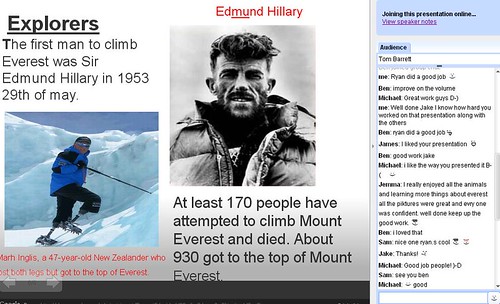
I worked with a Google Presentation and wanted to engage the children with the text through the use of the instant messaging window that is available. All of my children love using MSN and Google Talk/Chat, it is the one application that they all use very regularly. For two years now both of my Year 5 classes who have been using Google Apps discovered Google Chat in GMail by themselves and have got busy using it.
So how was this all setup? There are some things that we have in place that have helped. Firstly the children are using Google Apps for Education and have a unique login. Secondly we are working in my classroom on laptops.
- I created a presentation, which is in effect our text, in my Google account.
- I shared the presentation with the class as VIEWERS. This is important as it will mean that the children will immediately see the file in presentation mode and not in editing mode. Loading time was slow today, although once all loaded we had no other problems.
- The instant messaging window will open when they click “View with others” (Bottom right hand corner) you will see their names appear in the “VIEWING NOW” box on your own presentation.
- We then did some shared reading of the text about Spies and Gadgets. I used the “CONTROL THE PRESENTATION” tool available to me as owner of the document. As I clicked and moved through the presentation everyone’s laptops updated. This was immediate in every case, not bad for sixteen wireless laptops and proved useful for whole class work.
- Once we had a good look through the text as a class, and some initial discussion, I then explained the question answer process. I would add a question in the IM window and they needed to navigate to the correct page and respond with their answer, also in the IM window.
- As I typed I muted the projector image so kids didn’t get a head start, that was helpful.
- The children answered in the IM window and I could see their name with the response showing ownership.
You may be thinking that some children may just look at other people’s answers. I talked to the class about this and encouraged them to engage with the text themselves, nevertheless seeing their peers answers proved a valuable function of this group IM session. Children were commenting on other answers and it caused some to question their own accuracy if they saw something different.
Of course there was the odd smiley! But that is what the children do when they IM, I was kind of entering their world. It is a delicate balance. I want to harness the engagement that IM brings and yet not make it too schooly so they switch off. I ensured that when they answered anything all of our usual literacy standards applied and the class responded well to that.
We worked on about 10 questions together and all of the children were totally engaged and motivated to find the answers and use the IM to form their response. They also maintained this engagement for considerably longer then when we work with paper and pencil.
As the answers rolled in I was able to immediately give feedback to different children, asking them to look again at what they had written. One particular question about the reasons why we use tables to present information caused the children to respond about the content and not the purpose. I discussed with the whole class what the correct answer might be, gave the children the start of the sentence in the chat window and asked them to answer again.
Beyond this one lesson I think that if the children were to use the Google Talk client then we could be looking at a variety of different texts and not just something created in Google Presentation. With the chat window open and a website or film playing it would allow us even more flexibility. In fact it could work with any other type of available application.
My target in the lesson was to engage the children with reading comprehension using technology we use in our classroom. I think we did that. It is taking what the children enjoy doing and harnessing that engagement, attempting to merge and utilise the skills they use outside of school to impact on their engagement with their learning.
100 Interesting Ways
Jan 26th
Posted by tbarrett in Google Docs
In November 2007 I began the first of a series of Google presentations gathering together some ideas about the uses of different tools for the classroom. I thought that the easy manner of sharing Google Docs was ideal to collate thoughts, tips and suggestions from teachers and educators all over the world.
I began with interesting ways to use the interactive whiteboard and the family has since grown to include, tips for Google Earth, Google Docs and the most recent Pocket Video Cameras. It has been great to watch them evolve as people get in touch and I add them to the document and they make their own edits.
Here is the family photo
My intention from the beginning was that there should be many authors of the presentations and that teachers and school staff could happily take the resource and share it with their colleagues. As it is in a simple presentation format it seems to have been successful in doing that.
In total we have collated 100 101 suggestions, tips and ideas for the classroom! (I can’t type quick enough and people keep adding more ideas!) It is fantastic to be part of that collaborative effort to share what we do.
The most recent on pocket video cameras seems to have really hit a rich vein of classroom ideas – so far 29 ideas have been shared by people all over the world and I only started it 3 days ago. I haven’t had chance to add an idea myself yet! Perhaps this wealth of ideas illustrates the power and potential of video in the classroom – which isn’t particularly new but pocket video cameras give us, and the children we work with, much easier access.
Who knows what the next 100 ideas will be about but I hope that you can be part of it – please take some time to take a look through some of them above, let me know if you have used the presentations with your staff. If you want to add an idea to any of the above presentations just let me know your email address and I will add you as an editor.
Assessing Pupils' Progress (APP) Google Doc
Dec 11th
Posted by tbarrett in Google Docs
In this post I welcome James Mansell, a fellow primary school teacher here in the UK, who explains about a wonderful resource he has created and brought to my attention that addresses the use of APP in school.
APP or Assessing Pupils’ Progress is the new (?) national approach in the UK to understanding children’s learning needs. There has been a whole heap of related links and materials released through the Primary Strategy site and no doubt if you are Literacy or Numeracy coordinator you will be (or have already) attending training in the UK. I will let James introduce himself further and explain more.
My name is James Mansell, and I work at Earl Soham Community Primary School in Suffolk. We are a small rural school with just three classes. I am currently teaching Years 4/5/6. I have been using Google Docs for my own planning for about a year and a half now. I have found the flexibility of being able to access my plans from anywhere, and link to resources from them, has made my job easier and helped me to be more organised, as I no longer get to school and realise I’ve forgotten to transfer my plans to my memory stick or left them lying on the table at home! In the last year, I have also begun using Google spreadsheets to keep an assessment record. This again has meant that I can access and add to assessment files without the need for carrying bulky box files between home and school.
Download you own copy of the APP Guidelines Doc
With the advent of the new APP materials from the Primary Frameworks for Literacy and Numeracy, I wanted to stick with my new paper-free way of working, but was unable to find an easy solution as the APP guidelines were only produced as PDF’s (ideal for printing, but not much good for working with online). So I decided that I would need to spend a bit of time taking the guidelines and turning them into something that I can use in Google Docs. After much copying, pasting, and reformatting the result is a spreadsheet which contains all of the Maths, Reading and Writing APP Guidelines currently available (Levels 2-5). Each Guideline is set out in the same way as the original PDFs, each taking a different sheet in the spreadsheet, but with two important differences: they are now editable and stored online.
There are a number of ways that the materials could be used, but this is how I intend to use them:
As APP is designed to be used with a sample of six children from across a range of abilities, I intend to select my six pupils and create six copies of the APP Guidelines, with the filename as the child’s name. I will then select the appropriate guideline sheets for each pupil and delete any unnecessary sheets (cutting the number of sheets by a third). Whenever I wish to make an assessment, I can highlight the appropriate statements in the grid, by changing the cell colour, and use the comment feature to reference any evidence I have used in making my judgement. It is then a simple matter of entering a Y or N in the appropriate box to show whether they have reached a particular level. If used with a class laptop, comments could even be made during a lesson when working with a small group or individual child, so that a bank of evidence is built up to support the assessments.
I hope that other teachers find this resource useful, and if you have any ideas for how it could be improved, please feel free to contact me. mr.mansell+app (at) gmail.com
I am sure you will join me in thanking James for the hours of work that has gone into the APP Document and for being willing to share it to help other teachers. Please let us know if you find it useful.